
 Español
 Français
 Deutsch
 Italiano
 Português

 Mega Packs
 Arcade Cabinet Kits
 Vinyls
 Monitors
 Arcade Stools
 Arcade Components
 T-Molding and U-Molding
 Gaming furniture
 Outlet
Emulators
Netplay on your arcade machine: online play with Batocera and RetroBat
Nov
A friend has a bartop at home, you have another at yours, and the two of you want to play the usual games together without lugging the cabinet around. If both machines run Batocera or RetroBat, you can: both systems include RetroArch’s online play, netplay, and it is controlled from the menu with the joystick. For it to work well, though, a few things have to match in both homes.
In this guide we explain how netplay works, what has to be the same on both machines, where each option is in Batocera 43.1 and RetroBat 8.3.1, what to do about the router and which arcade games work well online. The information comes from the Batocera 43.1 and RetroArch 1.22.2 code, the Batocera and RetroBat wikis, the libretro documentation and the Fightcade website, all checked on 12 November 2026.
How it works: rollback
RetroArch’s netplay does not wait for the other player’s inputs to reach you. Before each frame it saves the game state in memory and, if the opponent’s input has not arrived yet, it guesses it. When the real input arrives, if the guess was right, play carries on; if not, it goes back to the saved state and replays those frames with the correct input.
This way, according to the libretro documentation, your buttons respond with no added delay even on an unreliable network. What gets corrected is what the opponent does, and with a high ping you will notice it as small jumps. Two things follow from this:
- The emulator has to be able to save states. Without save states, netplay works only in a limited way. That is why not every core will do.
- Run-ahead is switched off. While netplay is active, RetroArch disables run-ahead, and rollback plays a similar role. What we explain in Input lag on your arcade machine still applies to local play.
RetroArch also has a setting, Input Latency Frames, which defaults to 0. According to its description, it adds frames of delay that reduce stutter at the cost of a noticeable lag. If the game keeps jumping, raising it by one or two frames should smooth it out.
Two machines in two homes: what has to match
The libretro documentation sums it up in one sentence: the same RetroArch version, the same core version and exactly the same game. In practice, with two bartops, that means this:
- The same system and the same version on both. Two Batocera 43.1 machines or two RetroBat 8.3.1.1 machines, the stable release as we write this. Both use RetroArch 1.22.2, but each one builds its cores separately, so the core versions may not match between the two.
- Exactly the same game. The same ROM from the same romset. Batocera and RetroBat check this using the file’s fingerprint (the CRC) and show it to you in the games list.
- The same core. If one machine uses FinalBurn Neo and the other MAME, RetroArch drops the connection.
With different RetroArch or core versions, RetroArch connects and only warns you, but the FinalBurn Neo documentation cautions that rollback may be affected. So use the same system and the same version in both homes, and update at the same time.
What about a Raspberry Pi against a PC? We have found no documented evidence that it works well, and the Raspberry Pi would have to cope with rollback, which replays several frames at once. The safe option is two similar machines. If you are choosing hardware, see What PC do I need for emulation?
Which arcade cores work
According to the official libretro files, which mark which cores have deterministic states, this is how it looks for arcade games:
- FinalBurn Neo: the recommended one, and the default core for the
fbneoandneogeofolders in Batocera and in RetroBat. For Neo Geo, CPS1 and CPS2, see Neo Geo on your arcade machine and Capcom CPS1, CPS2 and CPS3 on your arcade machine. - Current MAME (libretro): also deterministic and fine to use, although it needs a more powerful machine.
- MAME 2003-Plus: libretro lists it with netplay, but the states depend on the game.
- Geolith: another option for Neo Geo in RetroBat.
- FB Alpha 2012, MAME 2010, MAME 2015 and MAME 2016: best avoided. The three MAME cores have no save states according to their own info files, even though RetroBat offers the netplay option for them.
Be careful with the mame folder: in Batocera it uses MAME 2003-Plus and in RetroBat the current MAME, so the easiest thing is for both of you to put the game in fbneo. Standalone emulators, such as MAME64, do not use RetroArch’s netplay. The list on the Batocera wiki dates from 2023; in 43.1, the arcade cores with netplay are fbneo, mame, mame078plus (MAME 2003-Plus) and imame4all.
Enabling it in Batocera 43.1
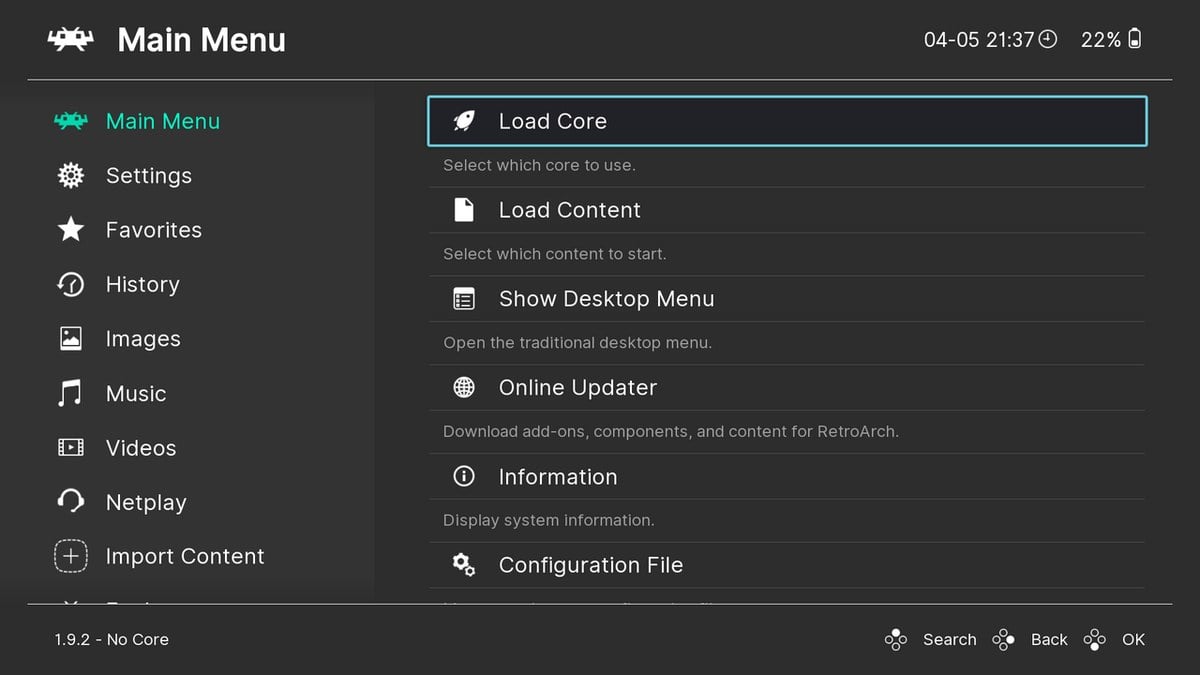
Go to GAME SETTINGS and, in the accounts section, open NETPLAY SETTINGS, next to the RetroAchievements settings. There you will find:
- ENABLE NETPLAY and NICKNAME: switch it on and enter the name other players will see.
- PORT: according to the wiki, leave it empty if your router has UPnP; otherwise, use 55435.
- USE RELAY SERVER: the intermediate server, with NEW YORK, MADRID, SAO PAULO, community servers and CUSTOM.
- AUTOMATICALLY CREATE LOBBY: creates an online game every time you launch a game.
- INDEX GAMES: calculates the fingerprint of your games so they can be compared with the other player’s. Do this after enabling netplay.
When you play online, Batocera disables RetroAchievements hardcore mode, which does not allow save states.
Hosting and joining
One of you hosts: in the games list, open the game options and choose START A NETPLAY GAME and then HOST A NETPLAY GAME. You can decide whether it is announced publicly (PUBLICLY ANNOUNCE GAME) and set a password to play (PLAYER PASSWORD) and to watch (VIEWER PASSWORD).
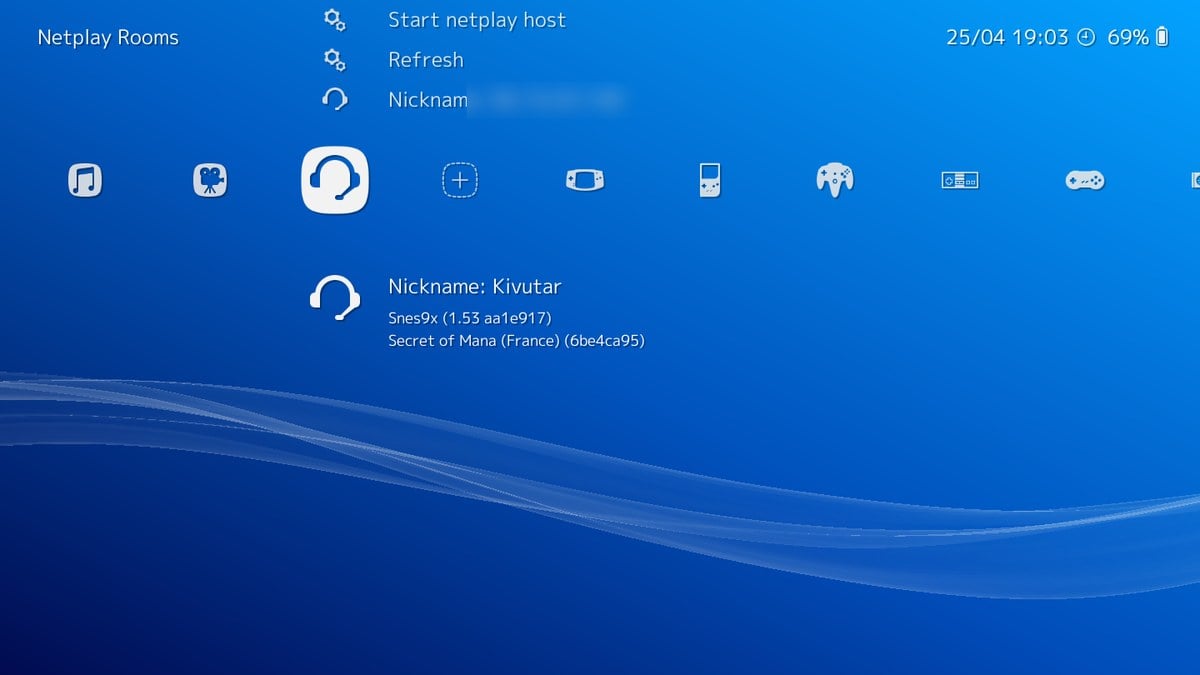
The other player joins from the systems view, not from the games list: with netplay enabled, the X button opens CONNECT TO NETPLAY, with the games on your local network and on the internet. Each one says whether you have the same game (SAME ROM), a different version (DIFFERENT ROM), whether this is unknown (UNKNOWN ROM VERSION) or whether you are missing the core (UNAVAILABLE CORE). Choose JOIN GAME to play or WATCH GAME to watch.
In RetroBat 8.3.1
The settings are under MAIN MENU, GAME SETTINGS and NETPLAY SETTINGS: switch on ENABLE NETPLAY, enter your NICKNAME and, when you leave, RetroBat indexes the games.
- Hosting: in the games list, hold the south button on the game, go into GAME OPTIONS, then START A NETPLAY GAME and HOST A NETPLAY GAME, with the same announcement and password options.
- Joining: in the systems view, press the north button (NETPLAY) and choose JOIN GAME or WATCH GAME in the list.
- Watch out for AUTOMATICALLY CREATE LOBBY: it is enabled by default and creates an online game every time you launch a compatible game. If you only want to play locally, switch it off.
The RetroBat wiki points out that the quality of the game depends on the slowest player. If you do not have it installed yet, start with RetroBat: the guide to setting up your arcade system on Windows.
The router: open port or relay server
Connections from outside have to reach the host on TCP port 55435. There are three ways to do it:
- UPnP: RetroArch asks the router to open the port, but does not check whether it succeeded. The libretro guide recommends checking with an open port checker while you host: if it is closed, nobody will be able to join.
- Opening the port manually: in the router, forward TCP 55435 to the bartop that is hosting.
- Relay server: if you cannot open ports, the connection goes through an intermediate server. From Spain, the closest one is Madrid. According to the Batocera wiki, it adds some latency.
To keep gatecrashers out, set a player password: the room appears in the public list, but only people who know the password can join. You can also choose not to announce it, although then the other player has to connect manually using your IP address from RetroArch.
Cable is better than wifi
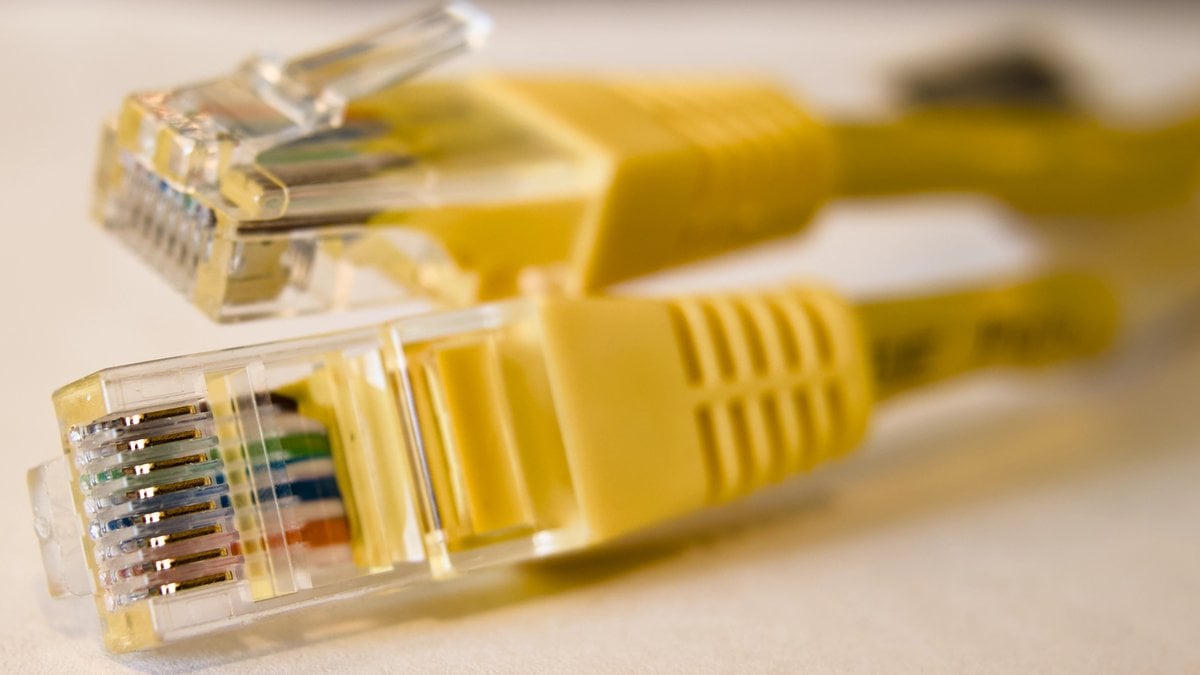
The Batocera wiki asks for a wired network whenever possible, and Fightcade even flags players who are on wifi. Raspberry Pis and mini PCs have an Ethernet port: ideally, run a cable from the router to the cabinet in both homes.
Controllers and four-player games
Without changing anything, the host is player 1 and the one who joins is player 2, and each plays with the player 1 joystick on their own cabinet. If your controllers are not properly assigned yet, see Setting up your arcade machine controls.
What about two against two, with two two-player bartops? RetroArch lets each machine request specific controllers with Request Device, in the advanced network settings; if anyone uses it, automatic assignment is switched off for everyone. In RetroBat it arrives as a new feature in beta 8.4.0. The libretro example is a Super Nintendo game with multitap and we have not seen it tested on arcade games, so treat it as an experiment. You will find the games that work for four players in 4-player games on your arcade machine.
What does not work online
- Naomi and Atomiswave: Flycast has no netplay in RetroArch, according to libretro, and Batocera 43.1 does not list it. We explain how to play them locally in Sega Naomi, Naomi 2 and Atomiswave on your arcade machine.
- Sega Model 2, Model 3 and light gun games: these do not work with RetroArch’s netplay either.
- Demanding consoles: the libretro documentation rules out PlayStation, Nintendo 64, Dreamcast, GameCube, Wii and 3DS because of performance.
Fightcade, the alternative on Windows
If your machines are mini PCs running Windows and you want to play fighting games, there is another option: Fightcade. It is a free, ad-free application for finding opponents and playing retro games online, with its own rollback based on GGPO. It includes its own version of FinalBurn Neo, another of Snes9x and Flycast-Dojo, which covers Naomi, Atomiswave and Dreamcast. It runs on Windows 7 to 11, macOS and Linux.
Neither Batocera 43.1 nor RetroBat 8.3.1 includes it. On a bartop with RetroBat it is installed separately, like any Windows program, and opened outside RetroBat; the account is created from the application itself. It adjusts the delay automatically according to the ping, and the controllers are set up in its own emulator: the Zero Delay board should show up as just another USB controller. It comes with no games: you need your own copies.
What if my machine has a Pandora?
Pandora boards do not run Batocera or RetroBat: to play online this way you need a Raspberry Pi or a mini PC. If you are still choosing, we compare the options in What System to Choose for Your Arcade Machine? Pandora vs Raspberry vs PC.
Frequently asked questions
Can I play with Batocera against a friend who has RetroBat?
We cannot guarantee it: the cores in each system may be on different versions. The safe option is the same system and the same version on both machines.
Do I have to open ports on the router?
Only the host, and only if their router has no UPnP. If they cannot open TCP 55435, they should use the Madrid relay server.
Why does my friend’s game appear greyed out?
Because you do not have the same game, you have a different version, or you are using different cores. Check that you both have it in the same folder and that it shows SAME ROM.
Can I play over wifi?
You can, but both Batocera and Fightcade recommend a cable.
Sources
Checked on 12 November 2026:
- libretro documentation: netplay, getting started, FAQ, multiple controllers and the FinalBurn Neo page.
- RetroArch 1.22.2 code on GitHub: netplay_frontend.c, runloop.c and the netplay README.
- libretro core info files: FinalBurn Neo, MAME and MAME 2003-Plus.
- Batocera: netplay wiki and the EmulationStation code in 43.1 (netplay settings and games list) and default cores.
- RetroBat: netplay wiki, releases and 8.3.1 systems and cores.
- Fightcade: official website and FAQ.