
 Español
 Français
 Deutsch
 Italiano
 Português
 Mega Packs
 Arcade Cabinet Kits
 Vinyls
 Monitors
 Arcade Stools
 Arcade Components
 T-Molding and U-Molding
 Gaming furniture
 Outlet
Emulators
Setting up your arcade machine controls in Batocera and RetroBat: buttons, hotkey and two players
Nov
When you finish assembling your bartop and switch it on for the first time, the system still doesn’t know what each button is. You have to teach it once, from the Batocera or RetroBat menu, and almost everything else follows from there: the button to exit the game, the one to save your progress and the second seat for two-player games.
In this guide we explain how the buttons reach the system, how to configure them, which button to make the hotkey, how to set up two players and what to do if a particular game doesn’t respond the way you expect. The information comes from the Batocera and RetroBat wikis and from the product page of our interface, consulted on 4 November 2026.
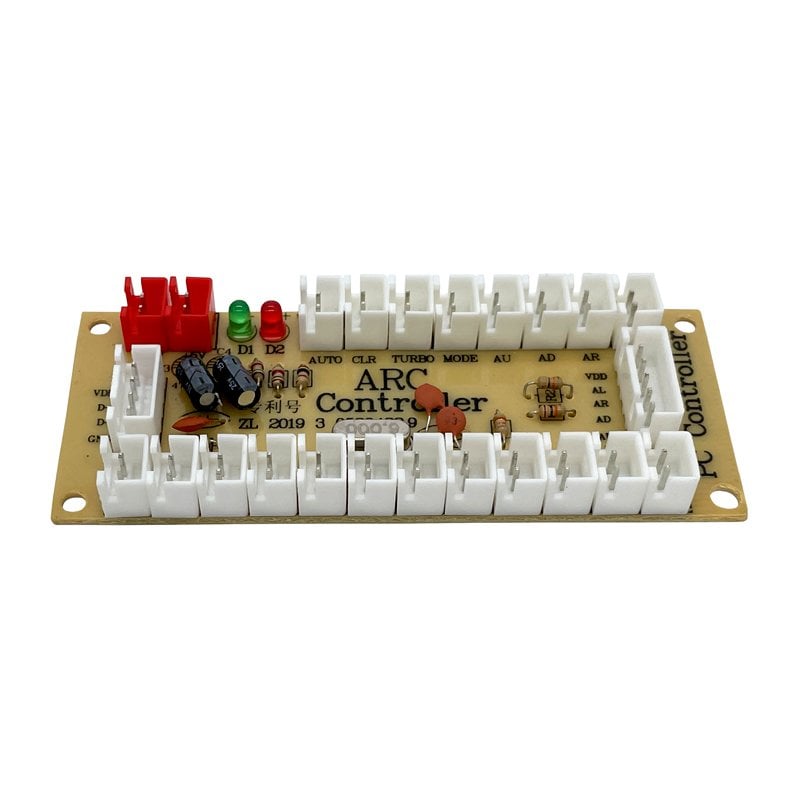
Each player’s joystick and buttons connect to a USB interface, such as the Zero Delay ARC, and the interface connects via USB to the PC or the Raspberry Pi. Each one supports a joystick and up to 16 buttons: 12 for the player and 4 more for functions such as START. You can use several at once, one per player, and MAME recognises them as Joy 1, Joy 2 and so on.
Some boards from other brands present themselves as a keyboard rather than a controller. The Batocera wiki explains that this doesn’t always work well for emulation, and that since version 41 Batocera includes a tool, keyboardToPads, that turns them into virtual controllers.
Before anything else, a warning from the Batocera wiki: when you plug in the interface or switch on the machine, don’t touch the joystick or the buttons. At that moment Batocera reads the resting position of each control.
- Batocera: if it doesn’t recognise the controller, the configuration screen appears. It asks for the buttons one by one; if you don’t have one of them, hold down any button to skip it. The joystick is assigned as the D-pad. If you want to repeat the process later, it’s in the controller settings (CONTROLLER MAPPING in the English menu).
- RetroBat: it configures most branded controllers on its own. If it doesn’t recognise yours, press a button and the prompt to hold down any button will appear; from there, press each button according to its position. You can also skip a button with a long press, but there’s a minimum: A, B, the D-pad, START, SELECT and the hotkey.
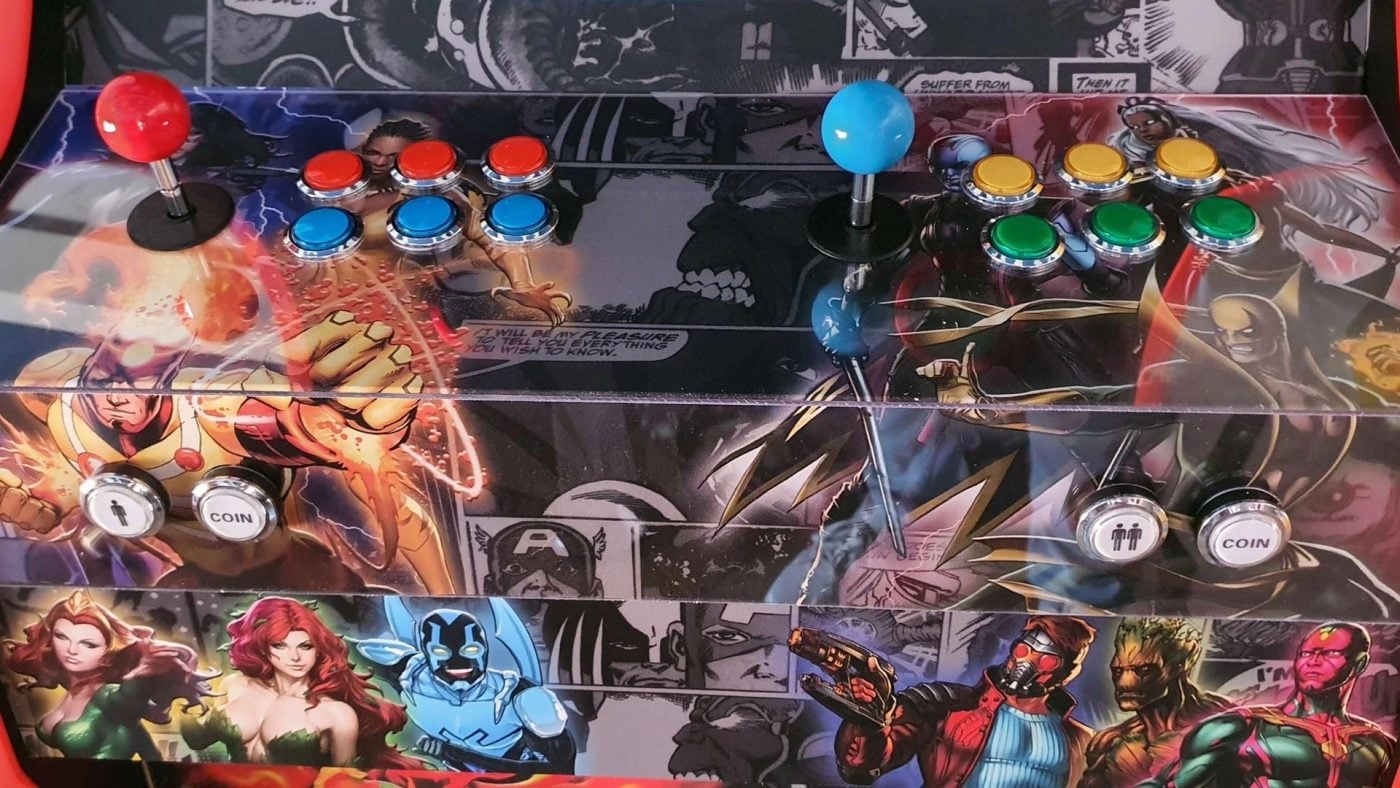
Both systems name the buttons after the position they would have on a controller: top, bottom, left and right. For arcade, the Batocera wiki gives a rule: the first four buttons on the left act as the main buttons, and the next ones as L1 and R1. With the RetroBat layout, an eight-button panel looks like this (Y, X, B and A are the names from the Super Nintendo controller):
- Top row, from left to right: Y, X, L1 and L2.
- Bottom row, from left to right: B, A, R1 and R2.
In a Capcom fighting game, that puts the punches on top and the kicks on the bottom, from light to strong. How each system fits this layout is explained in Capcom CPS1, CPS2 and CPS3 on your arcade machine and in Neo Geo on your arcade machine.
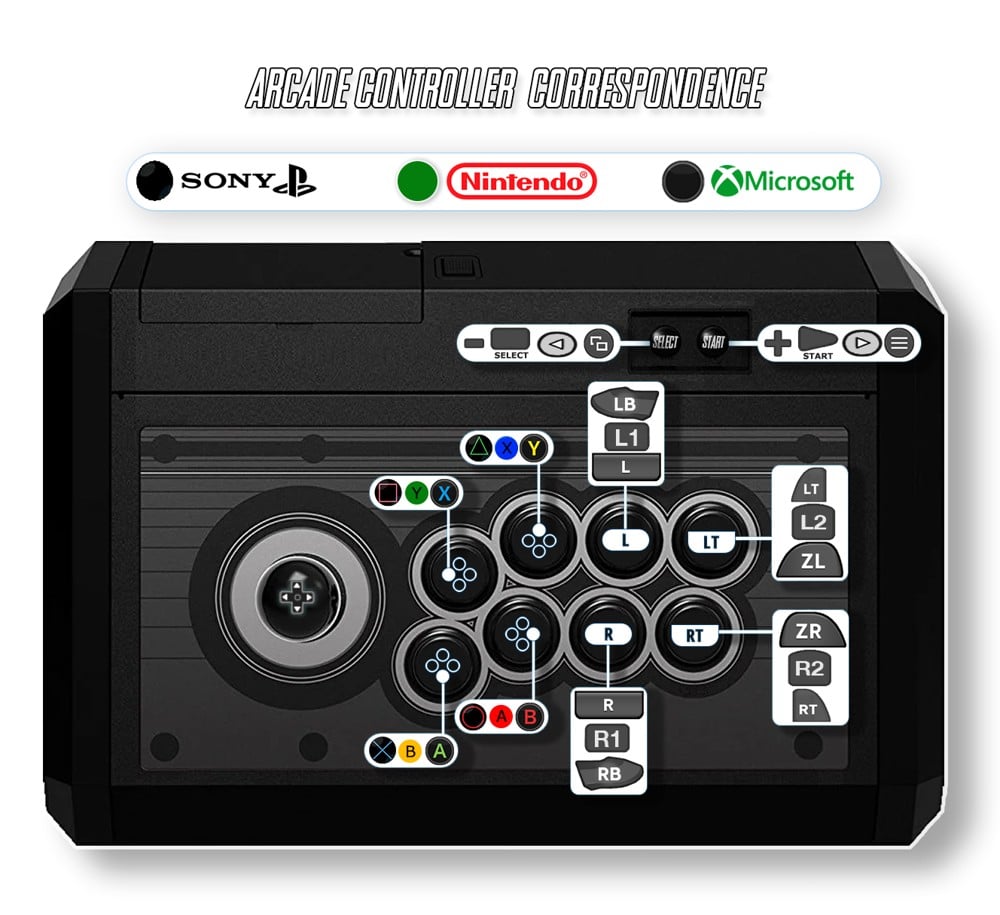
The hotkey is the button that, pressed together with another one, works as a shortcut. The main ones are the same in both systems:
- Hotkey + START: exit the game and return to the menu.
- Hotkey + B (bottom): open the emulator menu.
- Hotkey + Y (left): save the game.
- Hotkey + X (top): load the game.
Which button should you use? The Batocera wiki recommends SELECT or a button that has no other function. If you put it on another button, that button’s function fires straight away: with START as the hotkey, for example, the game closes when you try to pause it. The same wiki explains that in some games SELECT is the button that inserts coins, so you can configure the coin button as SELECT and use it as the hotkey: on its own, it adds credit; with START, it takes you out of the game.

Two players
Each player has their own interface. If player 1 ends up on the wrong side, you can change it from the menu:
- Batocera: the controller and Bluetooth settings show the list of connected controllers and which player each one is.
- RetroBat: in the controller settings (CONTROLLER SETTINGS) you assign a controller to each player.
If you’re going for four, 4-player games on your arcade machine tells you which games are worth it.
If a particular game behaves oddly
The Batocera wiki puts it like this: each controller has a single configuration, and there isn’t one that suits every system, because Nintendo, Sony, Sega and arcade games each placed the buttons in their own way. That’s why it’s best to choose the one that works well for most of them and only adjust what doesn’t work:
- In a RetroArch game, open the Quick Menu (hotkey + B) and go into the controls. There you can change the buttons, but so that the changes aren’t lost when you exit, you have to save them for the core, for the game or for the folder.
- In MAME, its own menu lets you adjust the controls.
- In RetroBat, if you’d rather configure everything by hand in the emulator, you can turn off automatic configuration (AUTOCONFIGURE CONTROLLERS) for everything, for one system or for one game.
On your bartop
Frequently asked questions
No. You configure them once in the Batocera or RetroBat menu, and the system passes that configuration on to the emulators.
SELECT, which can be the coin button, or a button that isn’t used for anything else.
Hold down any button and it skips to the next one.
Does this work if I play on a Pandora?
No. These menus belong to Batocera and RetroBat, and Pandora boards run their own closed system.
Sources
Consulted in November 2026:
- Batocera wiki: configuring a controller, hotkey shortcuts, remapping controls per emulator, arcade controls, settings menu and MAME.
- RetroBat wiki: controller configuration, shortcuts, arcade sticks and main menu.