
 Español
 Français
 Deutsch
 Italiano
 Português
 Mega Packs
 Arcade Cabinet Kits
 Vinyls
 Monitors
 Arcade Stools
 Arcade Components
 T-Molding and U-Molding
 Gaming furniture
 Outlet
Emulators
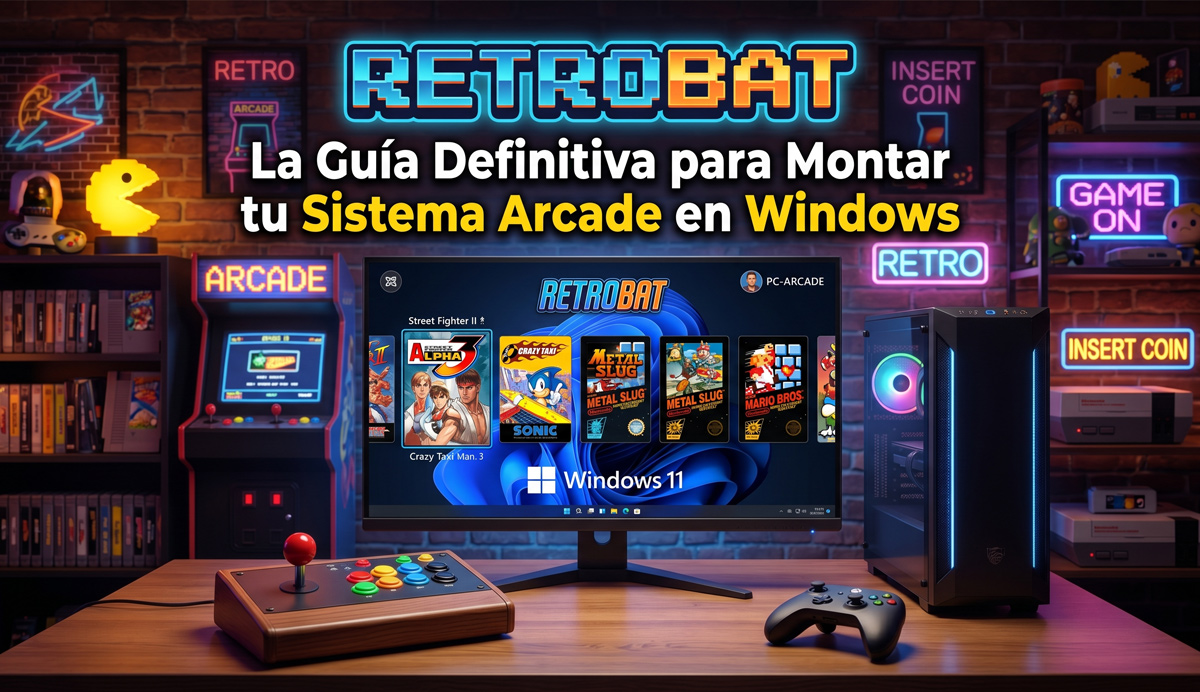
Retrobat: the ultimate guide to setting up your arcade system on Windows
Oct
What is Retrobat?
Retrobat is the ultimate emulation frontend for Windows. It is a free and open-source solution that automates the setup of EmulationStation (the graphical interface) together with RetroArch and many standalone emulators. In other words: you copy your ROMs, run Retrobat, and within minutes you have a professional arcade system up and running.
Unlike Batocera (which requires a complete operating system), Retrobat runs inside Windows: you don’t need to partition drives or disable Secure Boot. Ideal for recycled PCs, gaming laptops or arcade machines with embedded Windows.
Current version: RetroBat 8.3.1 (16 October 2026). Since version 8, RetroBat is a fully 64-bit program, introduces the Game Control Center (a menu you open during a game with Select + East button on your controller) and the installer only includes RetroArch: the other emulators are downloaded automatically the first time you launch a game that needs them, except for Switch, TeknoParrot and paid emulators.
Key Features
| Feature | Description |
|---|---|
| Plug & Play | Copy ROMs into the right folders and play. No manual emulator setup |
| Portable | Install it on an SSD, external HDD or USB stick. Take it to any Windows PC |
| 100+ systems | From Atari 2600 to PS4, including MAME arcade, Neo Geo, Dreamcast and Nintendo Switch |
| Automatic scraping | Automatically downloads covers, descriptions, videos and metadata from ScreenScraper |
| Customisable themes | Fully customisable visual interface with themes you can download from within Retrobat |
| Shaders and bezels | Support for CRT shaders, scanlines and screen frames (bezels) per system or game |
| Netplay | Online multiplayer compatible with RetroArch netplay |
| Save states and rewind | Save/load games at any time, rewind function |
| Controller/gun support | Automatic setup of XInput controllers, support for Sinden, Aimtrak and other light guns |
| Cheevos (RetroAchievements) | Unlock achievements in retro games with a RetroAchievements connection |
| Collection management | Create custom collections (“Favourites”, “Beat ’em up”, “Shmups”…) |
System Requirements
Minimum
| Component | Requirement |
|---|---|
| OS | Windows 8.1/10/11 64-bit |
| CPU | SSE2 compatible. Dual Core 3 GHz, no older than 2008 |
| GPU | Compatible with Direct3D 11.1 / OpenGL 4.4 / Vulkan |
| RAM | 4 GB |
| Storage | 30 GB free (minimum base installation) |
| Software | VC++ Redistributables (32 and 64-bit), DirectX |
| Controller | At least 1 XInput gamepad recommended |
Recommended (for modern emulation: PS2, GameCube, Wii, PS3…)
| Component | Requirement |
|---|---|
| CPU | Intel i5/i7 or AMD Ryzen 5/7 (recent generation) |
| GPU | NVIDIA GTX 1060 / AMD RX 580 or better (Vulkan/Direct3D 11) |
| RAM | 8-16 GB |
| Storage | NVMe SSD (500 GB+) for the best loading times |
Important notes
- For Dolphin (GameCube/Wii), PCSX2 (PS2) or RPCS3 (PS3), you need a modern GPU with Vulkan support
- Retrobat can automatically download the VC++ and DirectX dependencies if they are missing
- It works on Steam Deck and ROG Ally with Windows installed
Step-by-Step Installation
1. Download
- Go to retrobat.org
- Click Download RETROBAT
- Download the installer of the latest stable version (in October 2026, 8.3.1)
- (Optional) Also download the PDF user manual
2. Dependencies (if you don’t have them)
Download from the same page:
- Visual C++ Redistributables All-in-One → run
install_all.bat - DirectX Web Setup → run
dxwebsetup.exe(untick Bing Bar)
Tip: Most modern PCs already have these dependencies. If Retrobat starts, you can skip this step.
3. Installation
- Run the downloaded installer
- Select your language → OK
- Accept the licence → I Agree
- Destination folder:
- Default:
C:RetroBat - Recommended: install on an SSD or external drive with enough space
- Default:
- Tick Create Desktop Shortcut → Finish
4. First run
- Go to
C:RetroBat(or your installation path) - Run
retrobat.exe - Retrobat will scan your ROMs and download metadata automatically
- The first time you open a game from a new system, Retrobat will download its emulator: make sure you are connected to the internet
- Ready to play!
Important Folder Structure
C:RetroBat
├── emulationstation      # Frontend and themes
├── emulators             # Downloaded emulators
├── roms                  # <-- YOUR GAMES GO HERE
│   ├── nes               # Nintendo NES
│   ├── snes              # Super Nintendo
│   ├── megadrive         # Sega Mega Drive
│   ├── psx               # PlayStation 1
│   ├── mame              # MAME arcade
│   └── ...
├── bios                  # Console BIOS files
├── saves                 # Saved games
├── screenshots           # Screenshots
└── retrobat.ini           # General settings
Adding Games (ROMs) and BIOS
ROMs
- Prepare your ROMs: they must be copies of games you own the originals of
- Copy each ROM into the right subfolder inside
roms - Run Retrobat → it detects them automatically
- Go to Main menu → Scraper to download covers and metadata
BIOS
Some systems need BIOS files:
- PS1:
scph5500.bin,scph5501.bin,scph5502.bin - PS2:
ps2-0230a-20080220.bin(or equivalents) - Sega CD / Mega CD:
bios_CD_U.bin,bios_CD_E.bin,bios_CD_J.bin - Neo Geo:
neogeo.zip - Dreamcast:
dc_boot.bin,dc_flash.bin
Put the BIOS files in the bios folder. Retrobat has a BIOS Checker in the menu to see which files are missing.
Controller Setup
Automatic mapping (most XInput controllers)
- Connect your controller via USB or Bluetooth
- Retrobat automatically detects Xbox, DualShock 4, DualSense, Switch Pro, 8BitDo controllers…
Manual mapping
- In EmulationStation, press Start → Controller Settings → Controller Mapping
- Hold down a button on the controller until it is recognised (3 seconds)
- Follow the on-screen prompts for each button
- For the HotKey, we recommend assigning Select or a dedicated button
Keyboard shortcuts (if you have no controller)
| Action | Key |
|---|---|
| Main menu | Enter |
| Navigate | Arrow keys ↑↓←→ |
| Select | X |
| Back | Z |
| Quit game | Hotkey + Start |
Retrobat on an arcade machine
Retrobat is a good choice if your arcade machine has a PC or Mini PC with Windows. What changes compared with playing on a gamepad:
- Joysticks and buttons: they connect to the PC via USB with a Zero Delay interface, one per player. Windows recognises it as just another controller, so you set it up with the manual mapping described in this article: hold a button until Retrobat detects it and follow the prompts.
- Hotkey: on an arcade control panel it is best to use the Coin or Select button as the Hotkey, so you can quit games and open the Game Control Center without a keyboard.
- Real arcade: besides MAME, Retrobat integrates TeknoParrot for modern arcade games and supports light guns such as Sinden, Aimtrak or Gun4IR.
If you are building your machine from scratch, our packs with USB interfaces include the cabinet, the joysticks, the buttons and one Zero Delay interface per player: you only need to add the PC with Retrobat and the monitor. If you are still deciding between PC, Raspberry Pi or Pandora, we help you choose in What system for arcade machine?, and we compare Retrobat with Batocera, Recalbox and co. in the best arcade emulation systems.
Advanced Customisation
Themes
- Main menu → UI Settings → Theme
- Download new themes directly from Retrobat (Theme Downloader option)
- Popular themes: Carbon (default), Epic Noir, Art Book
Shaders (visual effects)
- Access them during a game: Hotkey + L1/R1 (depending on your settings)
- Recommended options:
- crt-royale: simulates a professional CRT monitor
- zfast-crt: lightweight, ideal for modest PCs
- scanlines: classic scanlines
Bezels (screen frames)
Retrobat automatically adds decorative frames when the game doesn’t fill the whole screen (e.g. 4:3 games on a 16:9 monitor). You can:
- Download bezel sets from the menu
- Turn them on/off per system in Game Settings
Netplay (online multiplayer)
- Make sure the game/core supports netplay
- Game menu → Netplay Settings
- Set up a relay server or direct connection
- Share your room or join an existing one
Common Problems and Solutions
Retrobat won’t start / black screen
| Likely cause | Solution |
|---|---|
| VC++ or DirectX missing | Install the dependencies from the Retrobat website |
| Incompatible GPU | Check that your graphics card supports OpenGL 4.4+/Vulkan |
| Wrong resolution | Edit retrobat.ini and adjust WindowWidth / WindowHeight |
Games don’t appear in the list
| Likely cause | Solution |
|---|---|
| Wrong extension | Check that the ROM has the right extension (.zip, .iso, .chd) |
| Wrong folder | Put the ROM in the right subfolder inside roms |
| Not scanned | Go to Game Settings → Update Gamelist |
The controller doesn’t respond / wrong mapping
| Likely cause | Solution |
|---|---|
| Non-XInput controller | Use an Xbox-compatible controller or software such as x360ce |
| Corrupt settings | Open BatGUI → SDL Library → Reset Gamepad Config |
| Conflict with Steam | Close Steam (it sometimes intercepts the controller) |
PS2/GameCube/Wii games run slowly
| Likely cause | Solution |
|---|---|
| Hardware not powerful enough | Lower the internal resolution in Advanced Game Options |
| Shader too heavy | Turn shaders off or use a light one (zfast-crt) |
| Wrong graphics backend | Switch between OpenGL/Vulkan/Direct3D in the emulator options |
No sound
- Check that Windows’ default audio device is the right one
- In RetroArch (during a game), press Hotkey + B → Audio → check the volume
“BIOS missing” error
- Go to System Settings → Missing BIOS Check
- Identify which files are missing for that system
- Put them in the
biosfolder
FAQ (Frequently Asked Questions)
Is Retrobat legal?
Yes, Retrobat is free software (LGPL v3). What has to be legal are your ROMs (you must own the original games).
Can I use Retrobat on a PC without a desktop (arcade mode)?
Yes, Retrobat can be launched in full-screen mode and managed with a controller only. Ideal for arcade cabinets.
Does Retrobat update the emulators automatically?
Yes, most emulators are downloaded/updated automatically. To update Retrobat itself, use Updates & Downloads in the menu.
Does it work with physical discs?
Retrobat works with ROMs/ISOs. To use physical discs, you need to create a disc image first.
Can I use Retrobat on an arcade machine with a vertical monitor?
Yes, Retrobat supports screen rotation. Set it in retrobat.ini or from the options menu.
Where are saved games stored?
In the saves folder, organised by system. They are also created inside each emulator’s folder depending on its settings.
How do I back up my settings?
Copy the saves, bios and roms folders and the retrobat.ini file. Everything else can be reinstalled.
Can I add Steam games to Retrobat?
Yes, since version 7.x Retrobat includes Steam integration. Steam games appear as just another system.
What is the difference between Retrobat and Batocera?
Retrobat: runs INSIDE Windows. Easier for PCs that already have Windows.
Batocera: a complete operating system. You have to format or boot from USB. Ideal for Raspberry Pi or dedicated PCs.
Does Retrobat support modern arcade games (TeknoParrot)?
Yes, recent versions of Retrobat integrate TeknoParrot for arcade games such as OutRun 2, Initial D, Mario Kart Arcade GP…
Can I use light guns (Sinden, Aimtrak)?
Yes, Retrobat has native support for Sinden, Aimtrak, Gun4IR, Blamcon and other guns. They are set up automatically in most emulators.
Quick Comparison: Retrobat vs Alternatives
| Retrobat | Batocera | LaunchBox | CoinOPS | |
|---|---|---|---|---|
| Price | Free | Free | Paid (limited free version) | Free |
| System | Native Windows | Standalone Linux | Native Windows | Native Windows |
| Portability | ✅ (USB/external) | ✅ (USB/external) | ⚠️ (Fixed path) | ✅ |
| Ease of use | ⭐⭐⭐⭐⭐ | ⭐⭐⭐⭐ | ⭐⭐⭐ | ⭐⭐⭐⭐ |
| Supported systems | 100+ | 100+ | 200+ | ~50 |
| Metadata scraping | ✅ Automatic | ✅ Automatic | ✅ Automatic | ❌ Manual |
| Themes | ✅ Many | ✅ Many | ✅ Many | ⚠️ Limited |
| Open source | ✅ Yes | ✅ Yes | ❌ No | ⚠️ Partial |
| Ideal for… | Windows PCs, laptops | Dedicated PCs, Raspberry Pi | Hardcore collectors | Simple arcade machines |
Conclusion
Retrobat is, without a doubt, the quickest and neatest way to set up an arcade emulation system on Windows. Its combination of plug-and-play installation, a professional interface and support for over 100 systems makes it the preferred choice for casual users and arcade machine builders alike.
Whether you want to relive Neo Geo classics on your laptop, build a bartop with thousands of games, or simply have a nice interface for your ROM collection, Retrobat saves you hours of manual setup and takes you straight to what matters: playing.
Useful links:
- 🌐 Official website: retrobat.org
- 📖 Wiki: wiki.retrobat.org
- 💬 Discord: official Retrobat server
- 🐙 GitHub: RetroBat-Official
- 📝 Release notes for each version: RetroBat on GitHub
Article updated: October 2026 | RetroBat 8.3.1