
 Español
 Français
 Deutsch
 Italiano
 Português

 Mega Packs
 Arcade Cabinet Kits
 Vinyls
 Monitors
 Arcade Stools
 Arcade Components
 T-Molding and U-Molding
 Gaming furniture
 Outlet
Emulators
Installing Batocera on your arcade machine: Raspberry Pi or mini PC, step by step
Nov
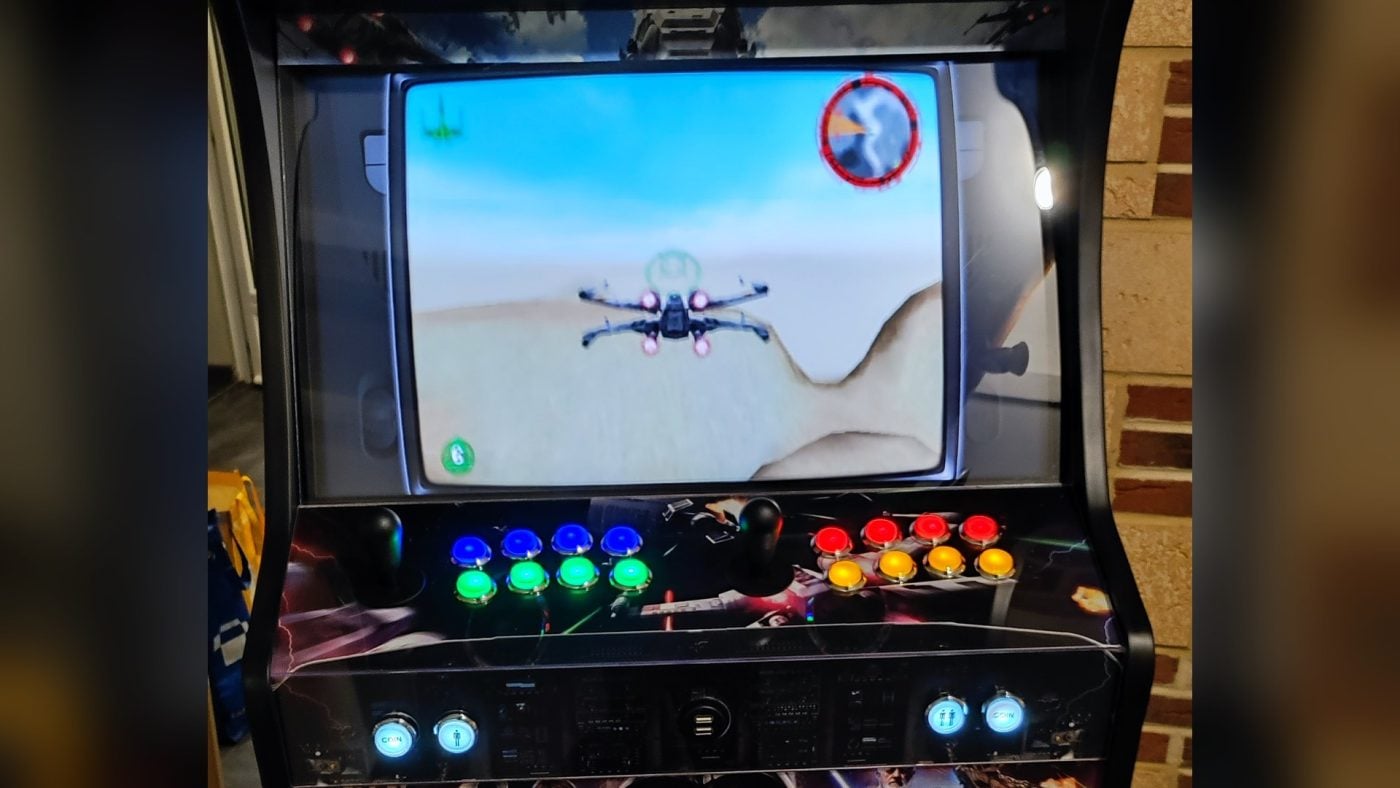
Batocera isn’t installed like a program on top of Windows: it’s a complete system that you write to a card, a USB stick or a drive, and when you switch the machine on it boots straight into the games menu. To install it on a Raspberry Pi or a mini PC, all you need to do is flash an image and boot from it.
In this guide we explain what you need, which image to download, how to flash it, what to do on first boot and how to move it to the PC’s drive if you don’t want to rely on the USB stick. The information comes from the Batocera wiki and website, checked on 4 November 2026, when the stable version was 43.1.
What you need
- The board or computer that will go inside the cabinet: a Raspberry Pi or a PC. If you’re not sure yet, in What System to Choose for Your Arcade Machine? we compare Pandora, Raspberry and PC, and in What PC do I need for emulation? you’ll find which mini PC is enough for each system.
- Where to install it: a microSD card in the Raspberry, or a USB stick, a hard drive or an SSD in the PC. The wiki asks for 16 GB as a minimum and recommends 32 GB, because with 16 GB the automatic updates can’t be downloaded.
- A good-quality power supply if you use a Raspberry Pi. The wiki recommends the official one, because others cause problems.
- Another computer to download the image and flash it.
Which image to download
Batocera has an image for each type of board, and you download it from the downloads page on its website. For an arcade machine, these are the ones that matter:
- Raspberry Pi 5 (and Pi 500): the bcm2712 image.
- Raspberry Pi 4 (and Pi 400): the bcm2711 image.
- PC: there are two. The website suggests x86-64-v3 for desktops and laptops, and x86_64 (the one it calls “Old Desktop/Laptop”) for older machines. If the PC has an Nvidia graphics card, the version 43 release notes recommend x86_64, because the Nvidia drivers are still experimental on v3.
A warning from the wiki: some browsers, such as Chrome, decompress the file on their own and change its name. If the file is larger than 4 GB, it has already been decompressed. If the download fails, try another browser.
Raspberry or PC: which systems each image includes
According to Batocera’s compatibility table, the Pi 4 and Pi 5 images include MAME, FBNeo, Neo Geo, Naomi, Atomiswave and Model 3. The Pi 5 image adds GameCube and Wii. Model 2, PlayStation 2, Lindbergh and Xbox only come in the PC images. A system being included doesn’t mean all its games will run at full speed: the same table warns that some emulators need a powerful board.
Flashing the image
The wiki uses Raspberry Pi Imager, which also works for USB sticks and PC drives, although any image-writing program will do, such as USBImager. These are the steps, with the version shown in the wiki:
- Install Raspberry Pi Imager on the other computer and open it.
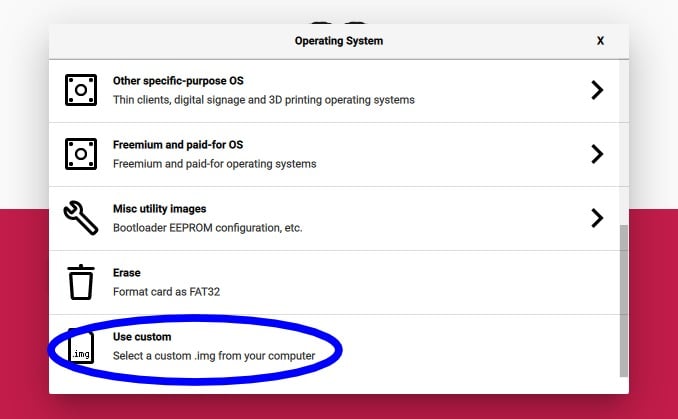
- In CHOOSE OS, scroll down to the bottom and choose Use custom. Select the Batocera file you downloaded.
- In CHOOSE STORAGE, choose the card or USB stick and press NEXT.
- When it asks whether you want to apply OS customisation, say no.
- Confirm that it’s the right drive, because everything on it will be erased, and wait for it to finish. The wiki recommends checking three times before carrying on.
First boot
Put the card or USB stick in the machine and switch it on:
- On the Raspberry Pi, according to the wiki, most boards boot on their own if there’s only one card or USB stick inserted.
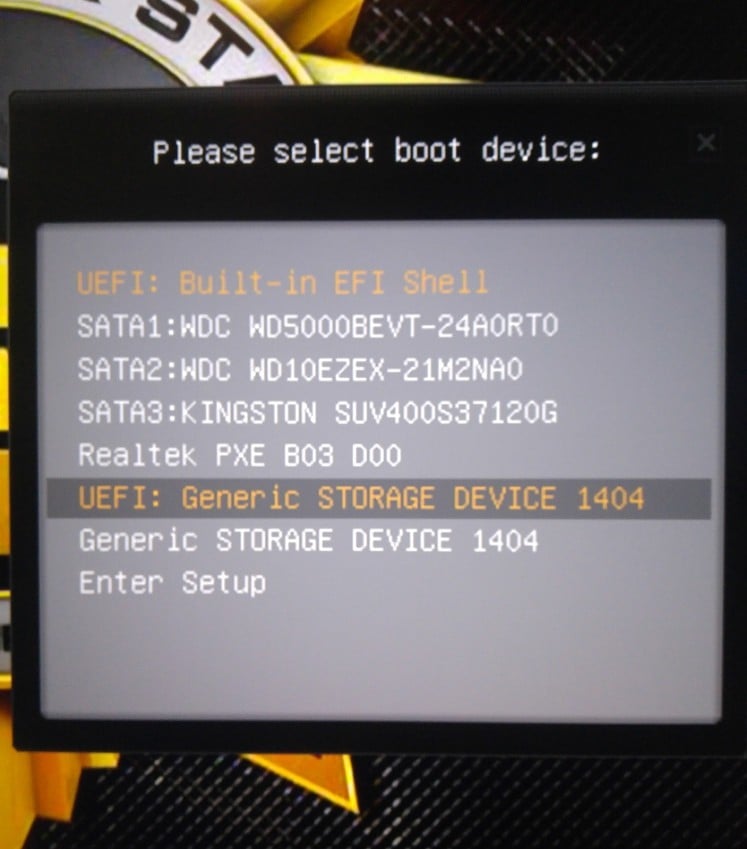
- On the PC, you may need to open the boot menu with F10, F11 or F12 and choose the USB stick. The wiki prefers UEFI boot if you have it.
When you plug in the controller interface or switch the machine on, don’t touch the joystick or the buttons: that’s when Batocera reads their resting position. We explain how to set them up in Setting up your arcade machine controls in Batocera and RetroBat.
If the PC won’t boot
The most common cause is Secure Boot. Since version 39, if a blue screen appears with a verification error, Batocera lets you enrol its keys: press Enter and follow the steps. You need a keyboard for this. The other option is to disable Secure Boot in the BIOS.
Before changing these settings on a PC that also runs Windows, the wiki asks you to note down your BitLocker recovery key: if encryption is enabled, Windows may ask you for it when you next boot. You may also need to disable Fast boot or allow booting from USB. If you see the Batocera logo and then the screen goes black, the system has booted and the problem is with the video output.
On the USB stick or on the PC’s drive?
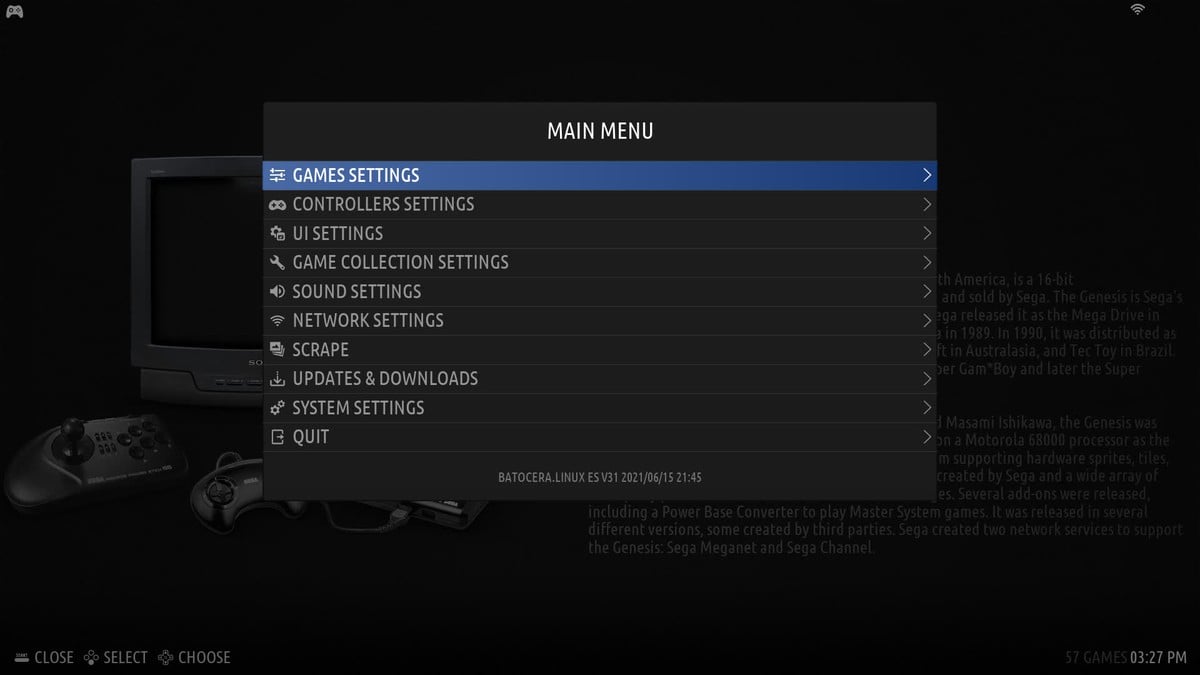
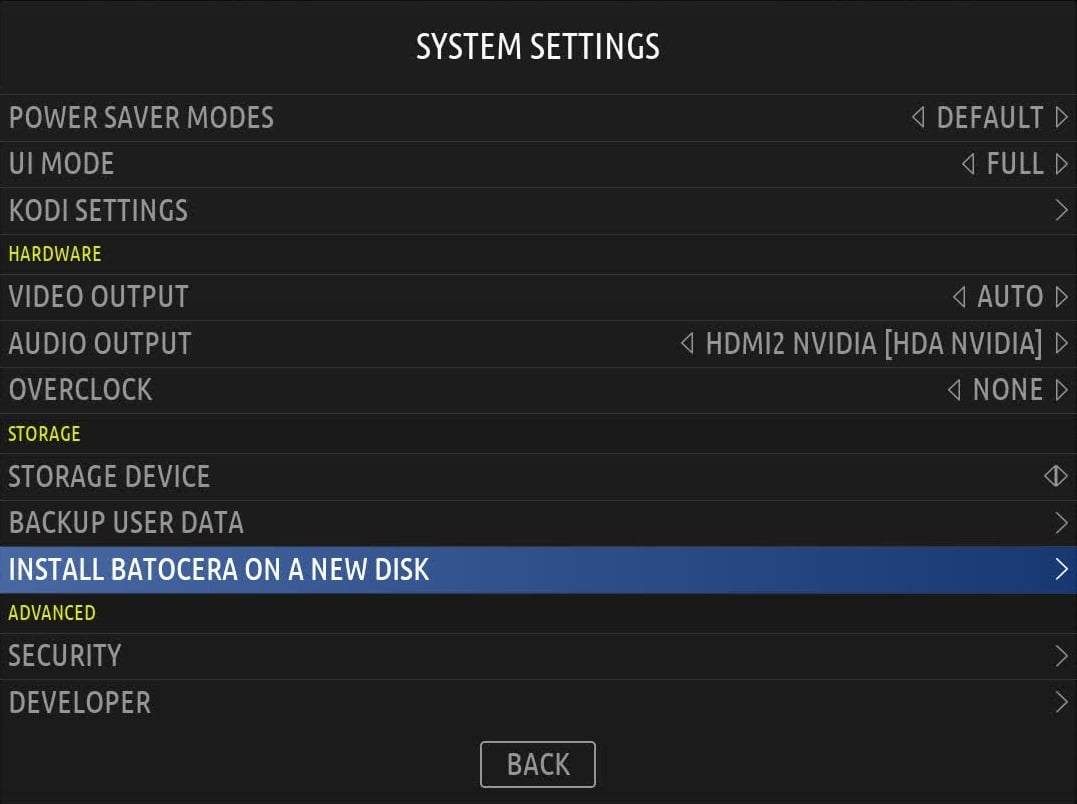
Batocera can stay on the USB stick for good. If you’d rather move it to the internal drive, there’s an option in the system itself: open the main menu with START and go into the system settings, to INSTALL BATOCERA ON A NEW DISK. You need an internet connection, because Batocera downloads the whole image and installs it. You choose the target drive, which can’t be the USB stick you’re booting from, and the architecture, which is the same one you downloaded.

Wi-Fi, updates and your files
- Network: in the network settings (NETWORK SETTINGS) you turn on Wi-Fi, choose the network and enter the password. With a cable connected, Wi-Fi switches off on its own.
- Updates: in UPDATES & DOWNLOADS you choose between the stable and beta versions, and start the update. From that same menu you can download freely distributable content, such as themes and decorations.
- Your files: with the machine switched on and on the same network, Batocera shares its data folder. From Windows, you open it in File Explorer by typing two backslashes and the IP address shown in the network settings, for example \\192.168.1.2.
On your bartop
Frequently asked questions
Is everything on the card or USB stick erased?
Yes. Flashing the image erases everything that was on the drive.
Can I have Windows and Batocera on the same PC?
Yes, if Batocera is on a USB stick and you choose what to boot from. If you install it on the internal drive, Windows is erased.
What size card do I need?
16 GB as a minimum, but 32 GB is better, because with 16 GB the automatic updates can’t be downloaded.
Does it work if I play on a Pandora?
No. Batocera is installed on a Raspberry Pi or a PC, and Pandora boards have their own closed system.
Sources
Checked in November 2026:
- Batocera wiki: installation guide, Secure Boot, boards such as the Raspberry Pi, settings menu, updates and downloads and setting up a controller.
- Batocera: downloads page, compatibility table and release notes for each version.