
 Español
 Français
 Deutsch
 Italiano
 Português
 Mega Packs
 Arcade Cabinet Kits
 Vinyls
 Monitors
 Arcade Stools
 Arcade Components
 T-Molding and U-Molding
 Gaming furniture
 Outlet
Emulators
Customise your arcade machine’s menu in Batocera: theme, box art, collections and kiosk mode
Nov
The menu is the first thing you see when you switch the machine on, and in Batocera you can change almost all of it: the theme, the box art and videos for each game, the collections, which systems appear and even the boot screen. You can also lock it so that nobody messes up the settings.
In this guide we tell you where each setting is. Everything comes from the Batocera wiki, consulted on 4 November 2026. If you haven’t installed it yet, start with Installing Batocera on your arcade machine.
The theme
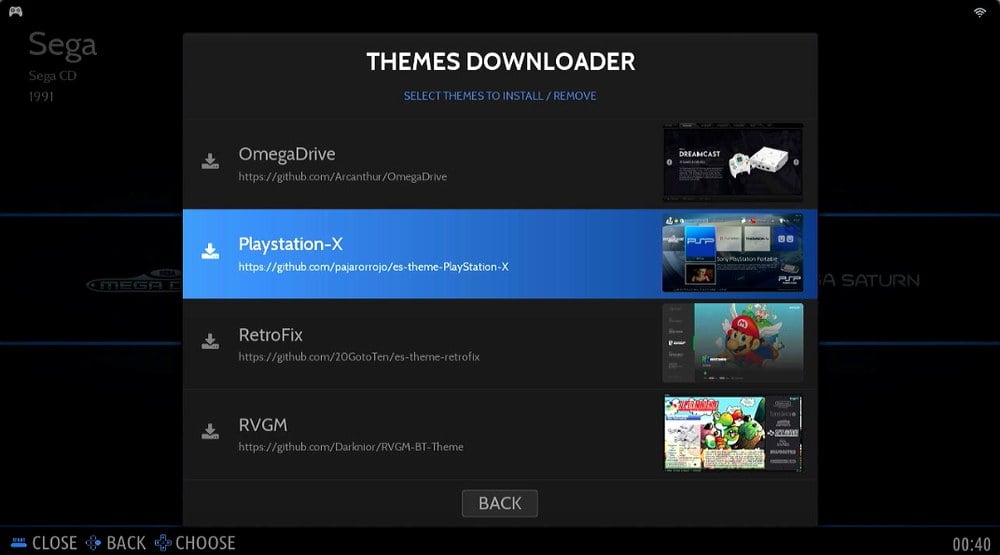
The theme is the design of the menu: the backgrounds, the system logos and how the game list looks. Themes are downloaded in UPDATES & DOWNLOADS > THEMES, and you choose the one in use in USER INTERFACE SETTINGS > THEME SET. The full list is also on the Batocera website.
Box art, videos and logos
For each game to appear with its box art, its logo and a video, Batocera looks them up online from MAIN MENU > SCRAPE. This fills in the information for the games you already have: scraping downloads images and data, never games.
In SCRAPE FROM you choose where they come from. According to the wiki, the sources are Arcade Database, TheGamesDB, ScreenScraper and IGDB:
- ScreenScraper is the one with the most options, with several image types and videos. It asks you to create an account on its website, and in SCRAPE you have to enter your username, not your email address. It has a limit of 50,000 requests a day, and a composite image (MIX) uses three, because it combines the screenshot, the box and the logo.
- IGDB arrived with Batocera 42 and asks for a Client ID and a Client secret, which you get with a Twitch account.
The options include downloading ratings, manuals (opened with SELECT on the game) and videos. On videos, the wiki warns that they use a lot of bandwidth, make scraping a large collection take considerably longer and may struggle on a low-powered board. When it finishes, update the game list in GAME SETTINGS > UPDATE GAMELISTS so that they appear.
Collections
In GAME COLLECTION SETTINGS, Batocera creates automatic collections from the scraping information: 2-player and 4-player games, all games, favourites, the ones you have never played and the ones you played most recently. On arcade systems it also makes them by manufacturer or by board, such as Sega, SNK or Namco.
In a cabinet for four, like our 4-player arcade cabinet, the 4-player collection keeps the games for playing together close at hand. The classics that work and how to set them up are in 4-player games on your arcade machine.
You can also make your own. With CREATE NEW CUSTOM COLLECTION you give it a name and add games with the Y button. Dynamic collections work like rules: they fill up on their own with the games that match them.
Which systems appear and in what order
- SYSTEMS DISPLAYED, in USER INTERFACE SETTINGS: you choose which systems are shown and which are hidden.
- SORT SYSTEMS: sorts the systems by name, by manufacturer, by machine type or by year.
- START ON SYSTEM: the system that appears at startup, or the last one you used.
- SHOW FAVORITES ON TOP: puts your favourites at the top of each list.
The screensaver
In SCREENSAVER SETTINGS you choose how long the machine has to sit untouched and what it does then: dim the screen (DIM or BLACK), play videos or screenshots of the games you have scraped (RANDOM VIDEO or SLIDESHOW) or switch to low-power mode (SUSPEND).
Kiosk mode and kid mode
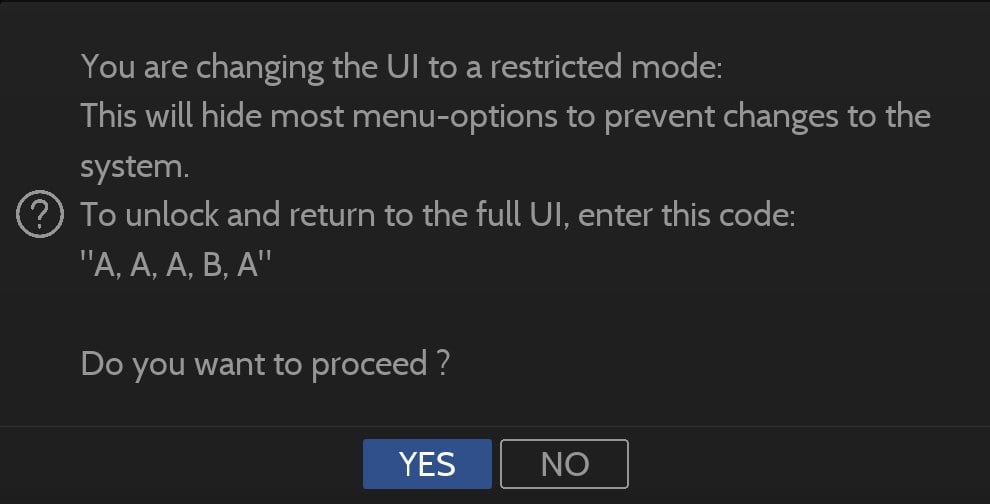
If other people use the machine, you can lock it in SYSTEM SETTINGS > UI MODE. According to the wiki, both modes stop anyone from opening the RetroArch menu with the hotkey and B, and from touching the configuration: collections, menu settings and everything else.
- Kiosk lets you play all the games.
- Kid only lets you play the ones you have marked as suitable for children.
To get back to the full menu there is a code: A, A, A, B, A, entered from the main menu (the one that opens with START in the system list). On a keyboard it is Esc, Esc, Esc, Enter, Esc. The wiki clarifies that the code goes by position, as on a Super Nintendo controller: A is the right-hand button and B the bottom one.
The boot screen and the music
When you switch it on, Batocera can show your own image or your own video: copy a PNG or an MP4 into the /userdata/splash/ folder and it will appear at the next boot. If there are several, it picks one at random. To mute the sound of the boot video, the wiki says to add the line splash.screen.sound=0 to the batocera.conf file.
You can also swap the menu music for your own: we explain how in Sound in your arcade machine.

What about a Pandora?
Pandora boards have their own menu, which can’t be changed the way Batocera’s can. What you can do on the Pandora Box CX, according to its product page, is save up to 99 games as favourites to keep them close at hand and change the button layout from the settings.
On your bartop
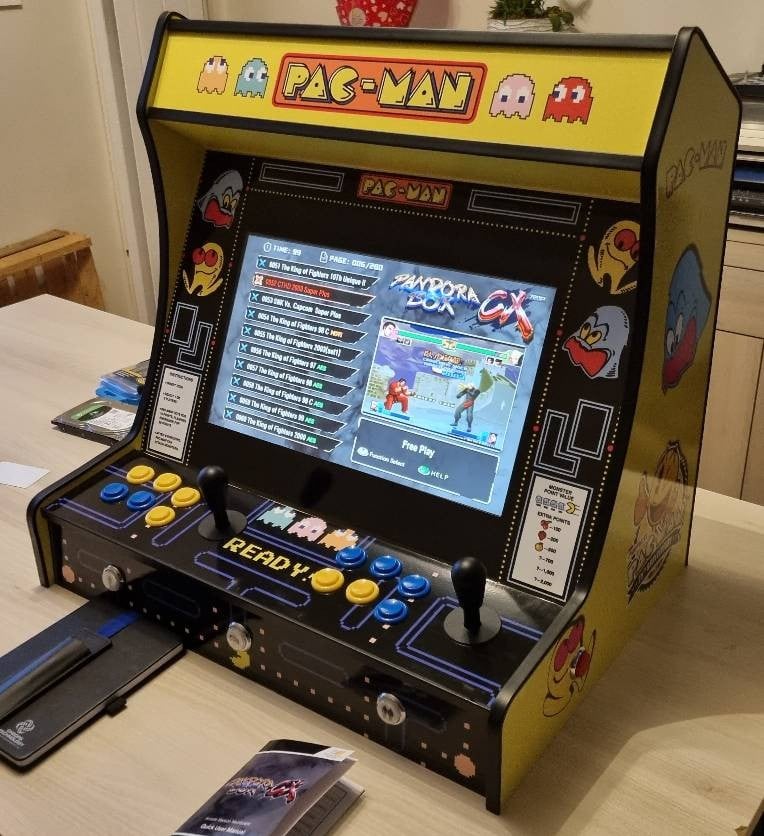
The cabinet in the photo is our Nova bartop kit. If you want the cabinet to match the menu, our vinyls section has designs for our cabinets. And to make the buttons respond properly in the menu and in your games, see Setting up your arcade machine controls.
Frequently asked questions
Does scraping download games?
No. It downloads box art, logos, videos and data for the games you already have.
Can I put my own logo on the boot screen?
Yes. Copy a PNG image or an MP4 video into /userdata/splash/ and it will appear at the next boot.
How do I turn off kiosk mode?
With the code A, A, A, B, A from the main menu. If that doesn’t work, delete the UIMode line from the es_settings.cfg file.
Not the way you can with Batocera. On the Pandora Box CX you can save up to 99 favourites and change the button layout.
Sources
Consulted in November 2026:
- Batocera wiki: themes, scraping sources, EmulationStation menus, kiosk mode and kid mode and boot screen.
- OmniRetro: Pandora Box CX product page.